Beauty POS features
Everything Zero POS does, on real screens
The till, online booking, customers, stock across shops, the team and the books: one beauty POS, in English and Spanish, on the phones, tablets and computers you already have.
Each section links to its step-by-step guide in the help centre.
Browse all the guidesTill & payments
A till for the shelf and the treatment room
New Sale is always one tap away. Find what they’re buying, add the customer (or sell to a walk-in, if you allow it), tick who sold it and take the money however they pay.
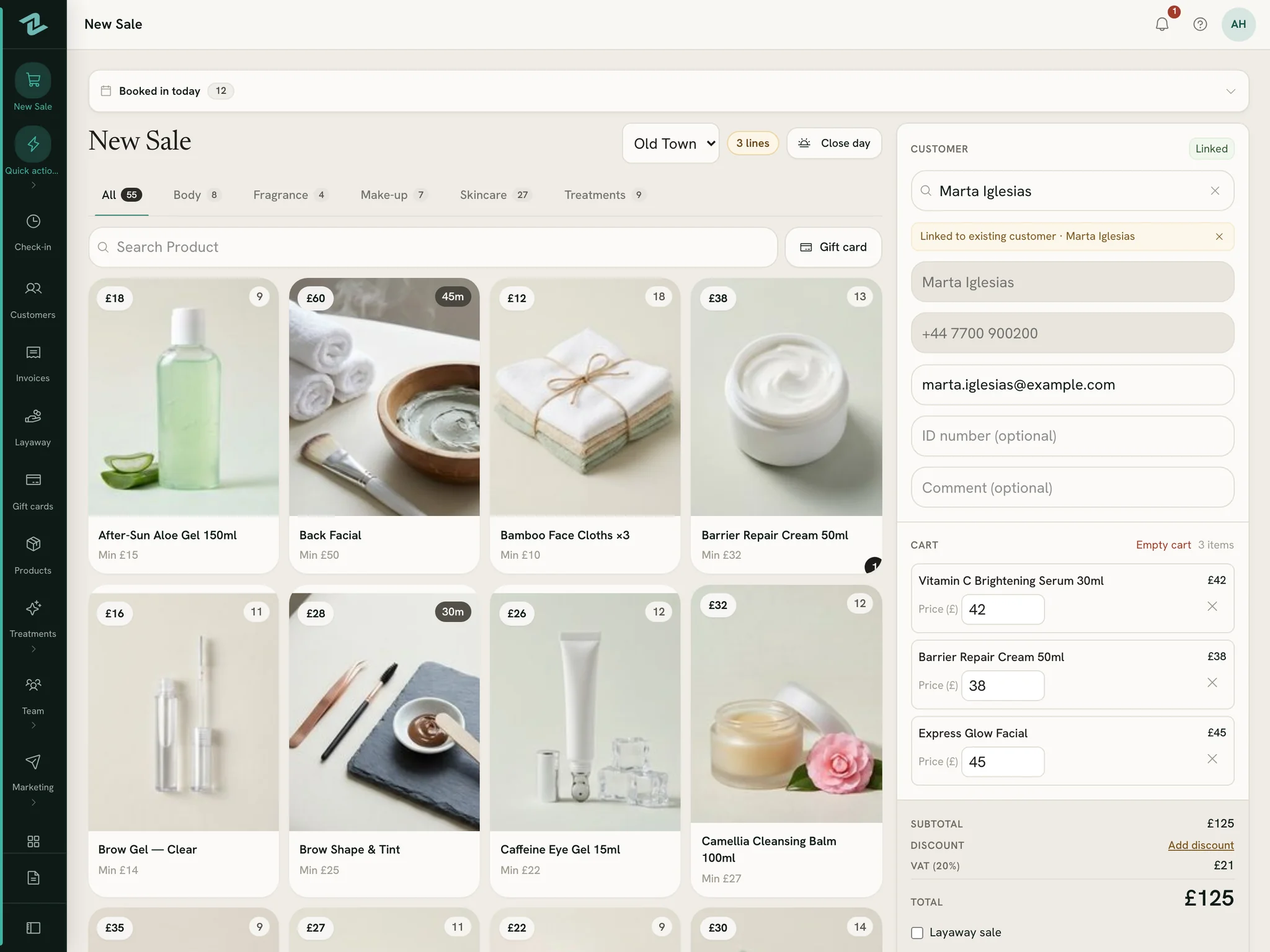
Products and treatments, one ticket
A serum and a facial on the same sale. Treatments have their own tab at the till, showing how long each one takes where a product shows its stock.
Split it any way
Part cash, part card, part gift card or store credit. The first method takes the total — a gift card or store credit only as much as it holds; add another and Balance to total settles the rest, and every amount stays yours to change.
Your own card terminal
Take the card on the terminal you already have and tap Card. Zero POS never sees card numbers and takes no cut of your card sales.
Tips, if you want them
Ask for a tip at checkout, if you want to: your own percentages, one the customer names or any amount. Give it to whoever made the sale, split it with the team or share it among everyone on shift; it stays out of your sales, tax and commission.
Discounts, with a floor
Type over a price or take money off the whole ticket. Each product can carry a minimum price; going under it asks a manager, by a notification or with their PIN at the counter.
Receipts and refunds
Print on an 80 mm roll or on A4, or email the receipt. Refunds go against the original sale, whole or in part, and the stock goes back on the shelf unless you say otherwise.
Treatments & online booking
Book the gaps, or let customers book them
Switch treatments on and each one gets a price, a length and a place at the till. Set each shop’s opening hours once: the diary, the online booking page and the rota all read them, with the same rooms, so they never disagree.
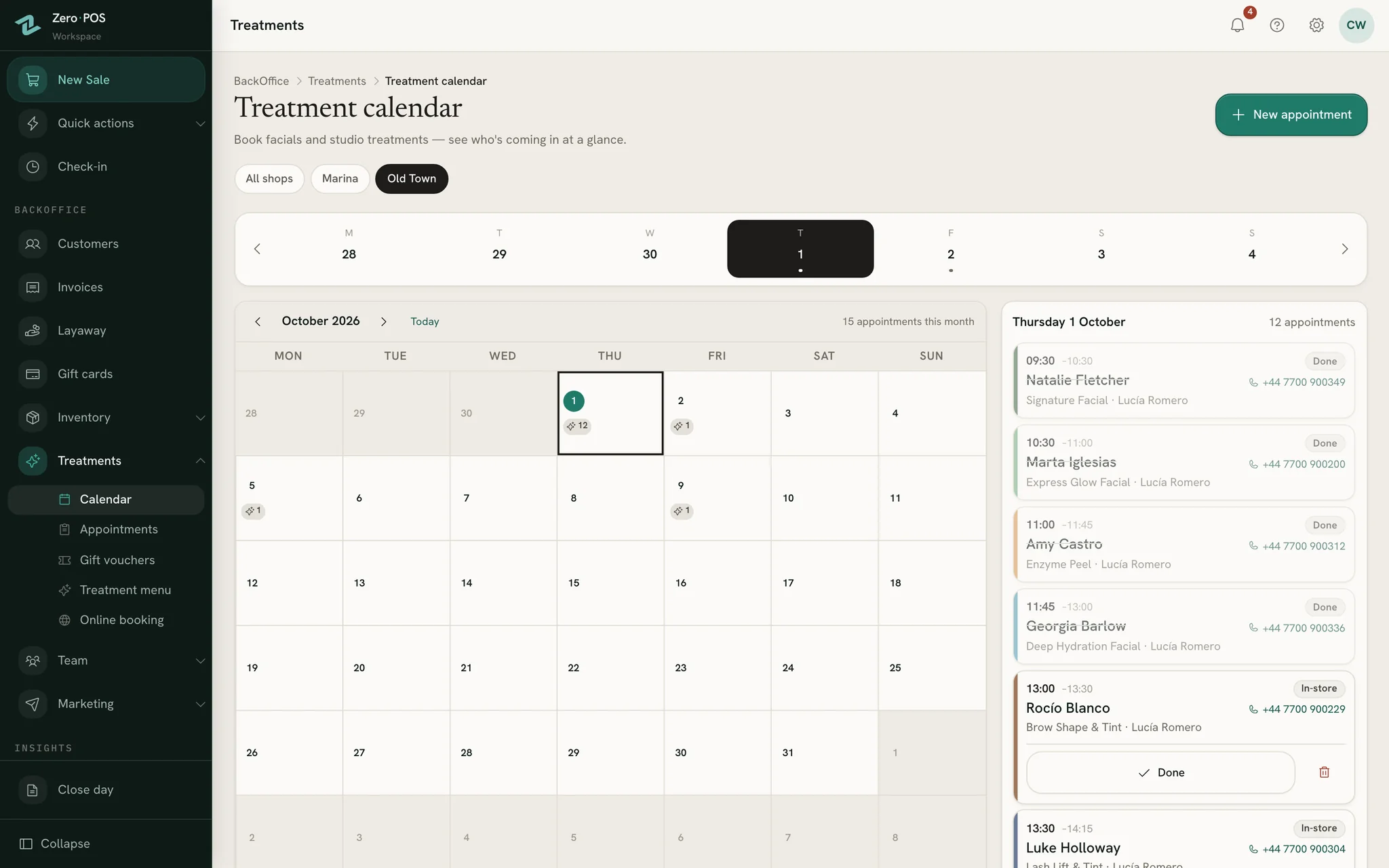
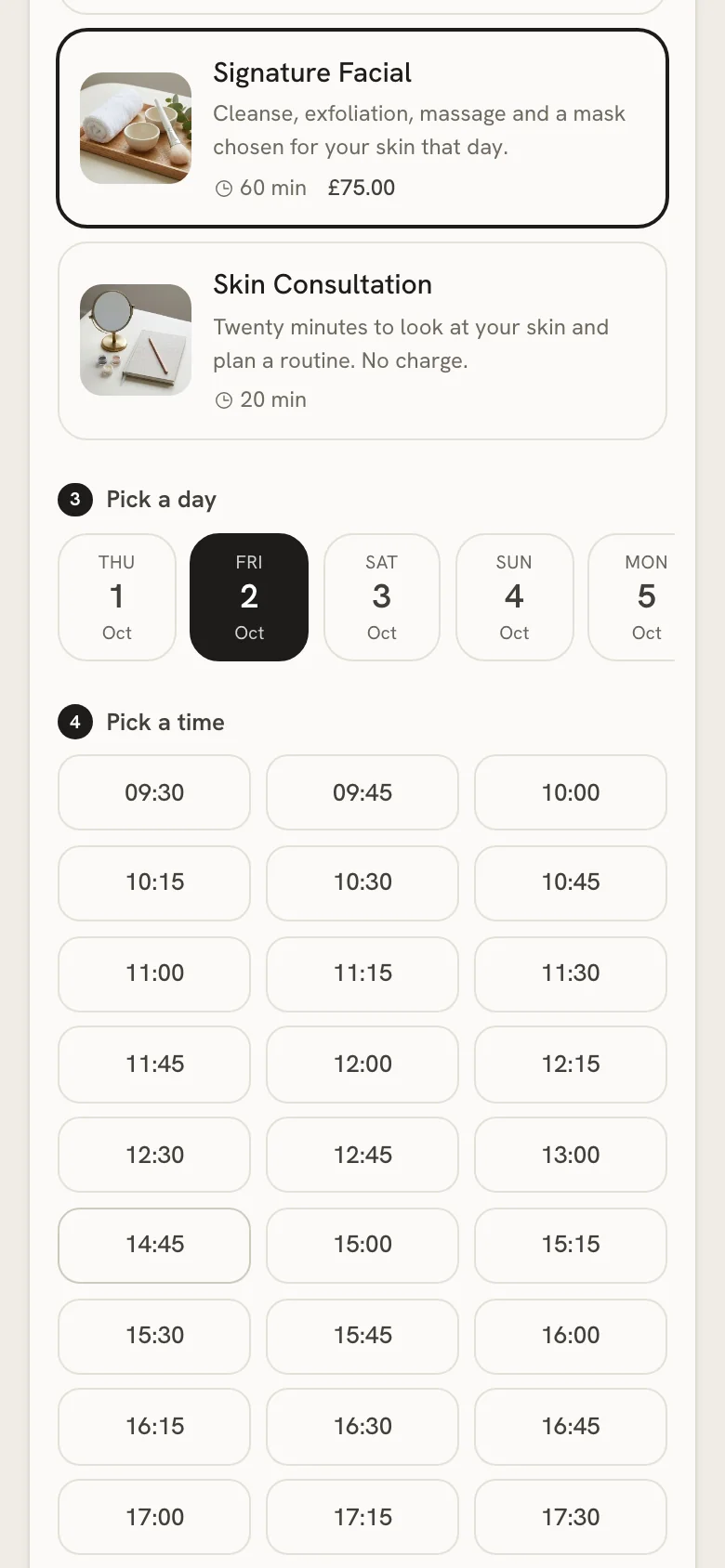
The day, with its gaps
Each day lists what’s booked, with the free gaps drawn in between. Tap a gap and the booking form opens at that time.
Rooms and therapists
Say how many treatments can run at once, and a time stays bookable while a room is free. Name who is doing each appointment.
A booking link of your own
Put it in your Instagram bio or a WhatsApp reply, or print it as a QR code on your receipts. Customers only ever see times that are really free.
No account needed
Customers leave a name and a phone number. With an email, they get a confirmation and a link to see or cancel the booking.
Reminders by email or text
Appointment reminders by email or text — the day before, two hours before or both, or at hours of your own — with a link to stop them in every message. Texts go from your own Twilio account.
Today’s list at the till
The sale screen shows today’s appointments: who’s next, for what, and for how long.
No-shows, in a tap
Mark a no-show in one tap, and undo it just as fast if they walk in late.
How it works
Customers, loyalty, gift cards & vouchers
Every customer on one file, and a reason to call
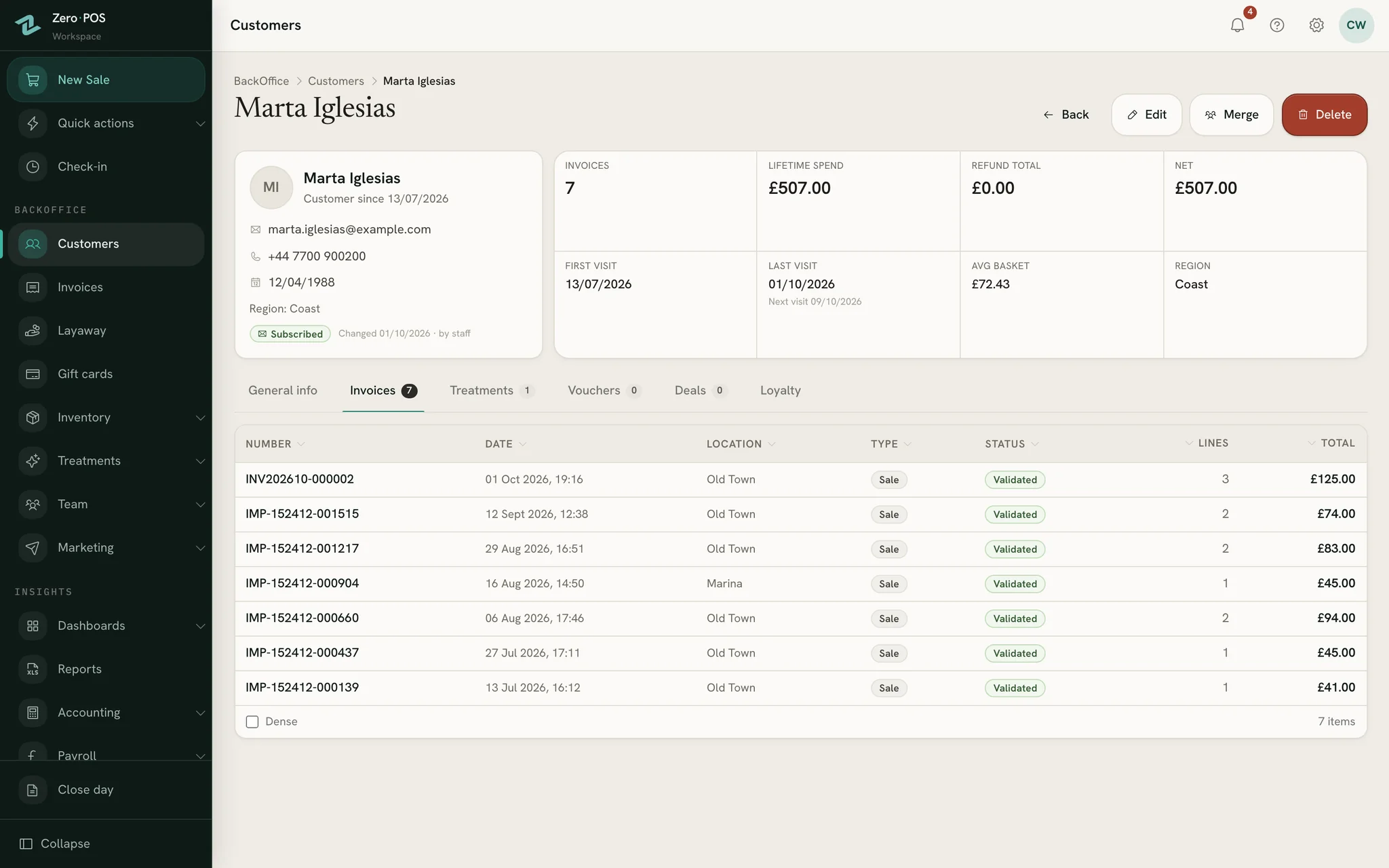
A customer’s file keeps their sales and refunds, their appointments, their vouchers, their points and their store credit, whoever served them.
Four kinds of value, kept apart
- Gift cardSold at the till
- In the amounts you choose, printed with its own code, spent bit by bit on anything you sell. You set the expiry, card by card if you like. It counts as a sale the day it’s sold.
- Treatment voucherGiven as a gift
- Issued from the back office for one treatment, never sold at the till. Printed with a code, checked at the counter without using it up, and marked used once the treatment is done.
- Store creditOwed to a customer
- Added to a customer’s file by a manager, with a note for the reason if you like. It appears at the till as a way to pay, never goes below zero, and is never paid out as money.
- Loyalty pointsEarned by spending
- Points on what customers spend, faster in the tiers you set, redeemed from their file.
Worth a call
A list of customers to phone: layaways with money owing, regulars who have gone quiet by their own rhythm, and big spenders you haven’t seen for a while.
Duplicates, merged
Two files for one person? Merge them. Sales, points and credit move to the one you keep, and nothing is deleted.
Find anyone
Search by name, phone or email, at the till or in the back office.
How it works
Layaways
Put it aside today, pay it off at any counter
A layaway belongs to a named customer and starts with a deposit. Nothing leaves the stock until it’s handed over.
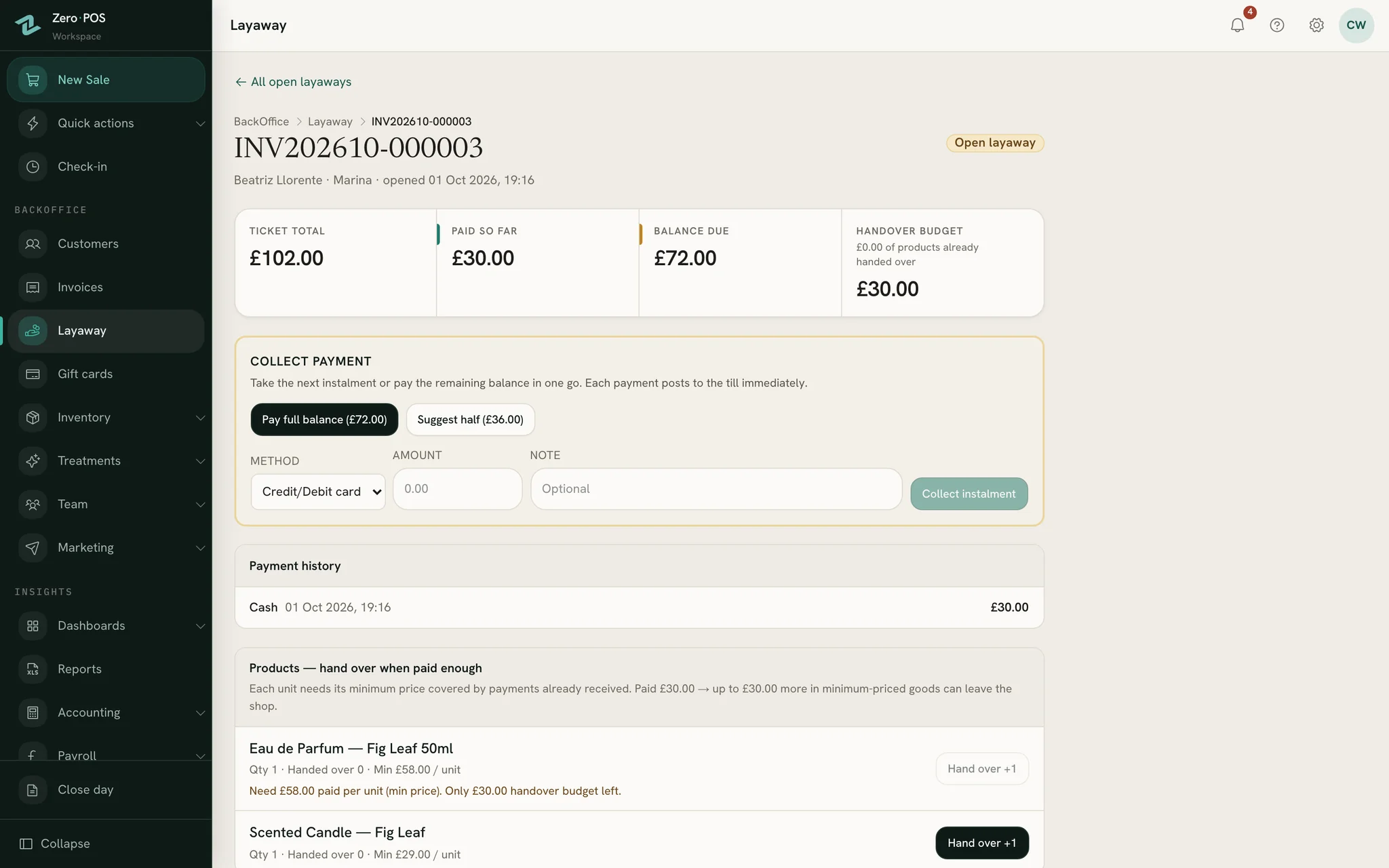
How a layaway runs
Build the basket as usual, tick Layaway sale and take the deposit.
Print the layaway receipt. The goods stay in stock, put aside.
Take each instalment from the Layaway list. Any seller can, whoever opened it.
Hand items over as they’re paid for: each one is released once the money covers its minimum price.
The last payment turns the layaway into an ordinary sale.
Commission follows the money
Sellers earn on each instalment, on the day it’s paid, not all at once when the layaway is opened.
Nothing forgotten
Worth a call lists every layaway with money owing, oldest first, with the customer’s phone and email.
Stock across shops
Every shelf, in every shop
Every change to stock is recorded with its reason — a sale, a refund, a transfer, a count, a tester — so the number on the screen can always explain itself.
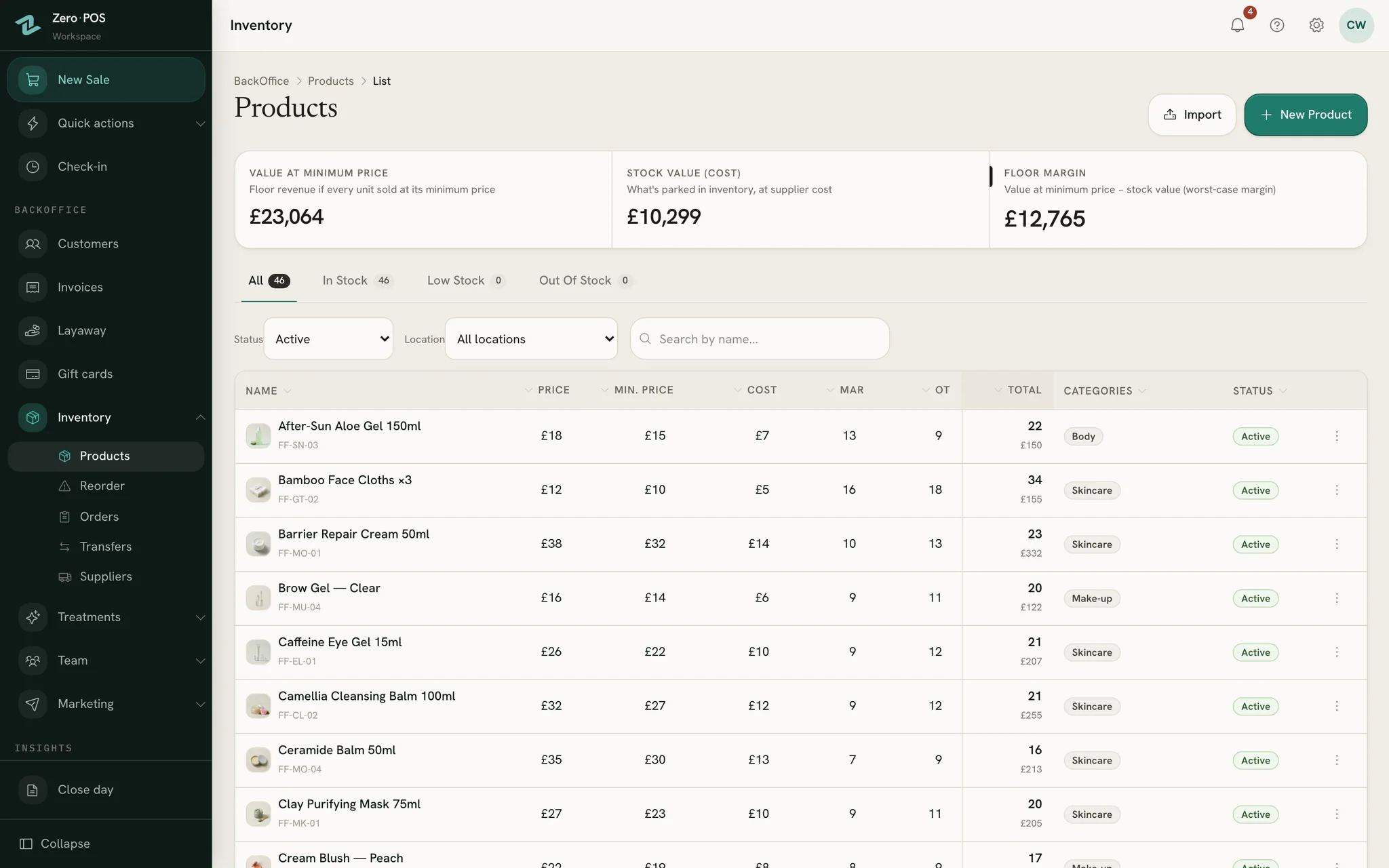
Transfers between shops
Move stock from one shop to another, or out of a storeroom, and both counts change together.
Testers and damaged stock
Record a tester you’ve opened or a damaged unit: it comes off stock with a note, the product dashboard counts the tester units, and the accounts count their cost.
Blind stock-takes
Staff count without seeing the expected figure. The differences show once the count is in.
Reorder and receive
A reorder list from your low-stock levels, purchase orders for your suppliers, and deliveries received straight into stock.
Bring your product list
Import products from a spreadsheet: a preview first, then apply. Undo takes back what the import created, as long as it hasn’t been sold or moved since.
Team: rota, time off, check-in, commission
Who’s working Saturday, and why
Your team says what suits them on their phone. You build the week from that, or ask for a draft, and publish it to everyone at once.
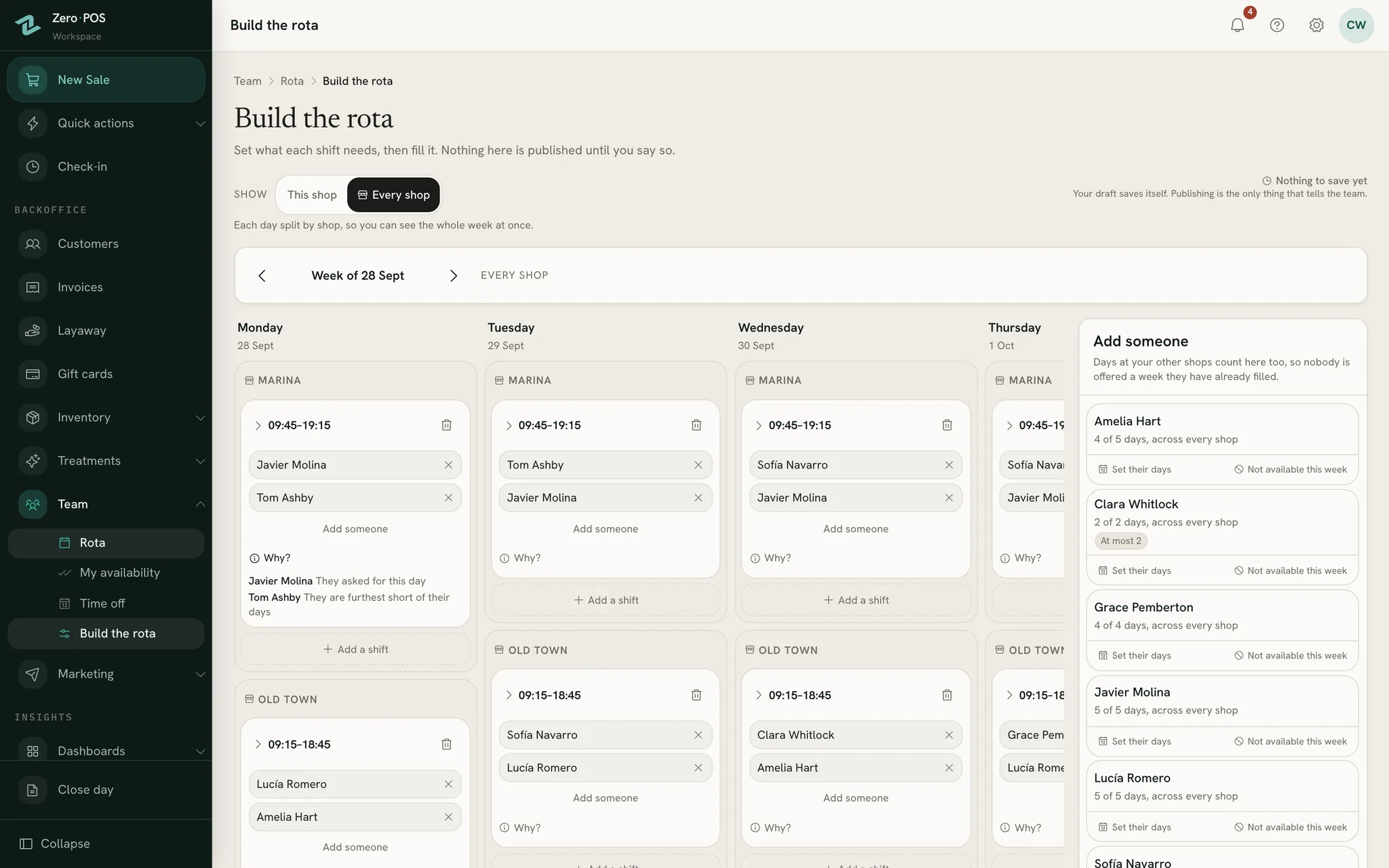
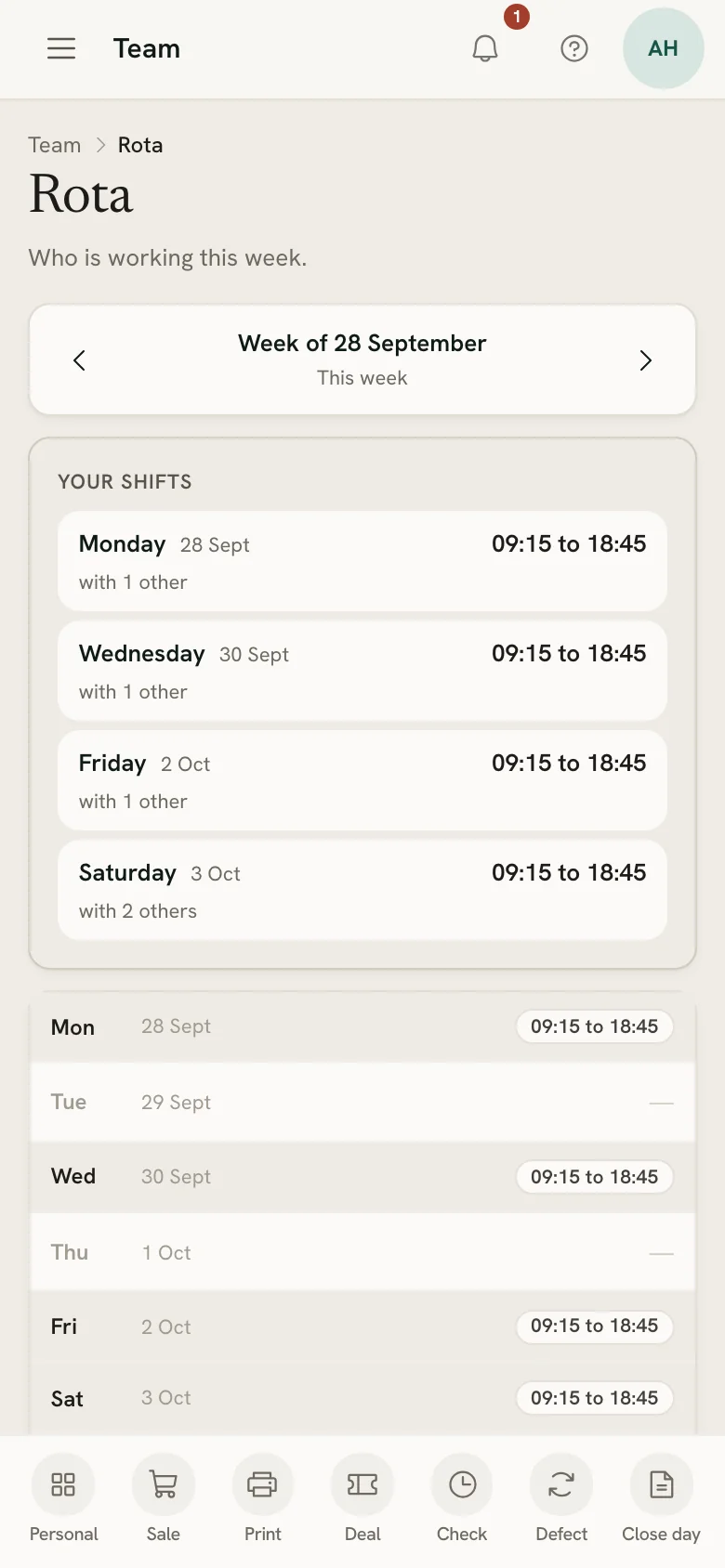
The rota
Propose a draft and every shift says why that person got it. The rules are written down and applied in order; a gap is left showing rather than filled by force. Every shop sits in one view, nobody is booked in two places at once, the draft saves itself, and publishing tells everyone with a shift.
Why?
- “They asked for this day”
- “They are furthest short of their days”
- “Nobody else was free”
Time off
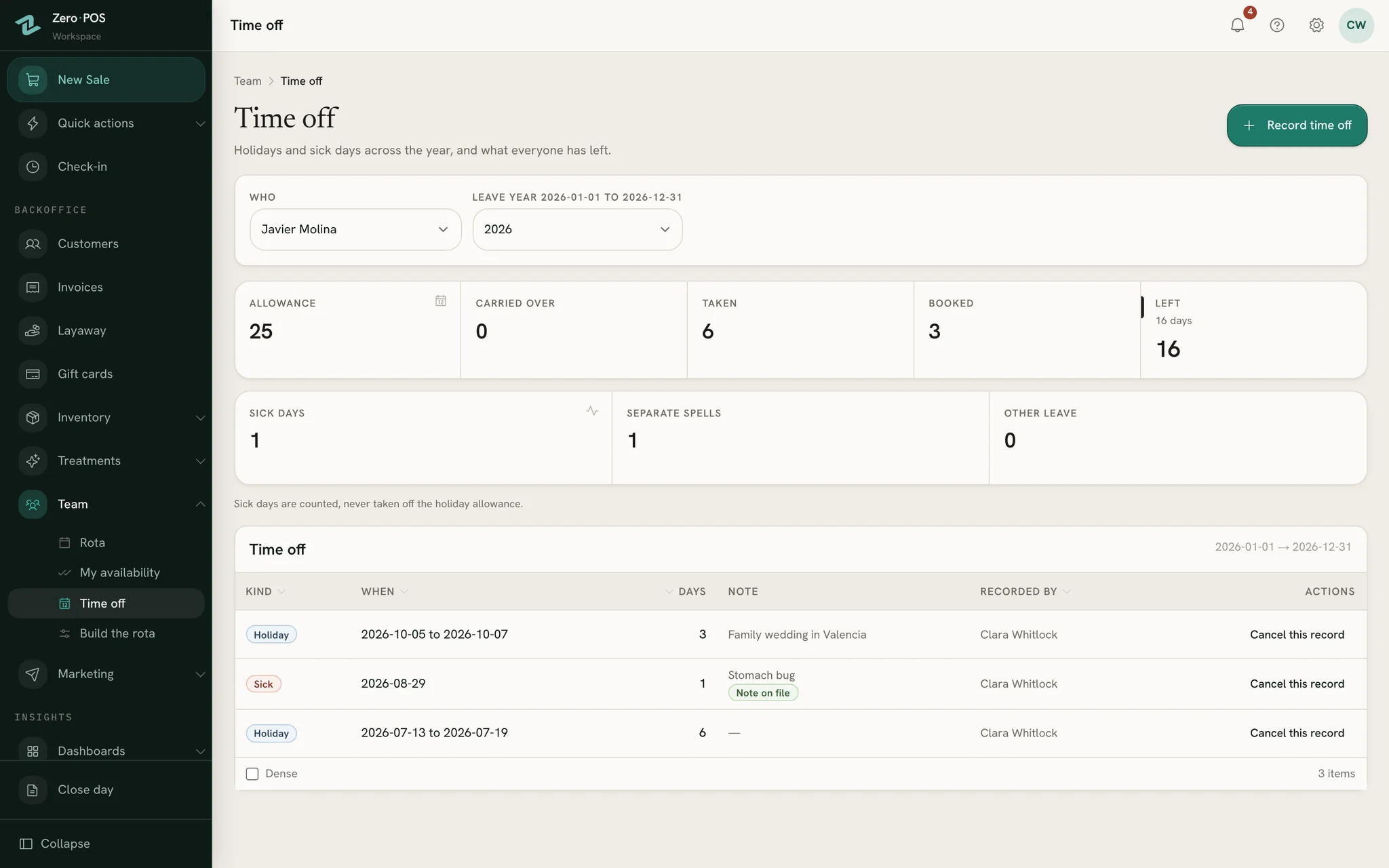
Holidays and sick days for each person. You set each person’s allowance; the app counts working or calendar days, skips days the shop is shut, and carries unused days over the way you choose.
Check-in
Staff clock in on their phone and pick the shop they’re in. Breaks are timed against the paid minutes you allow, and a shift nobody clocked out of closes itself and is flagged.
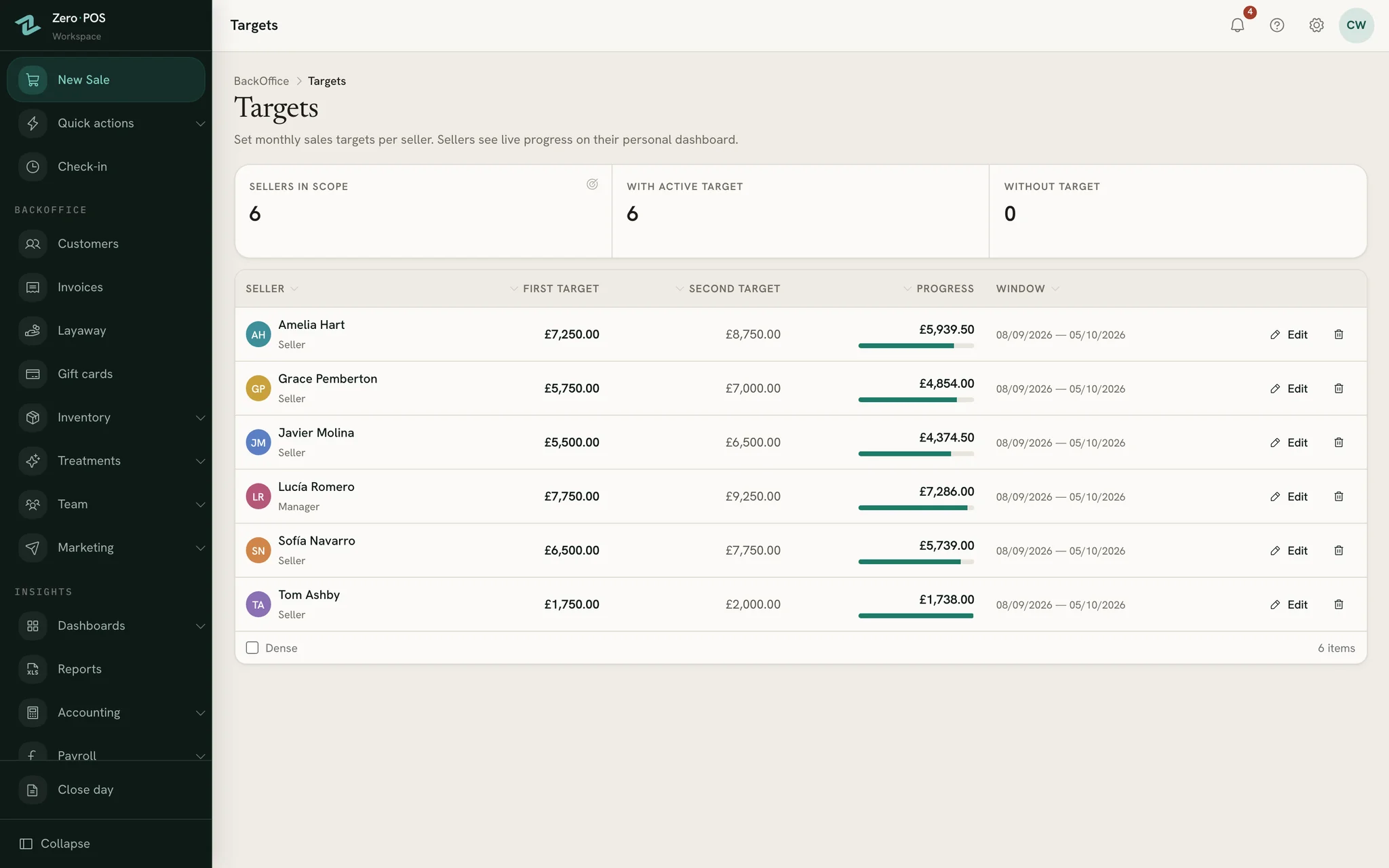
Commission and targets
Commission tiers for each person, worked out on each day’s sales before tax, beside their targets and a leaderboard for the day. Payroll does the sums; you pay people and record it yourself.
How it works
Closing the day, accounts & reports
Count the day, read the month
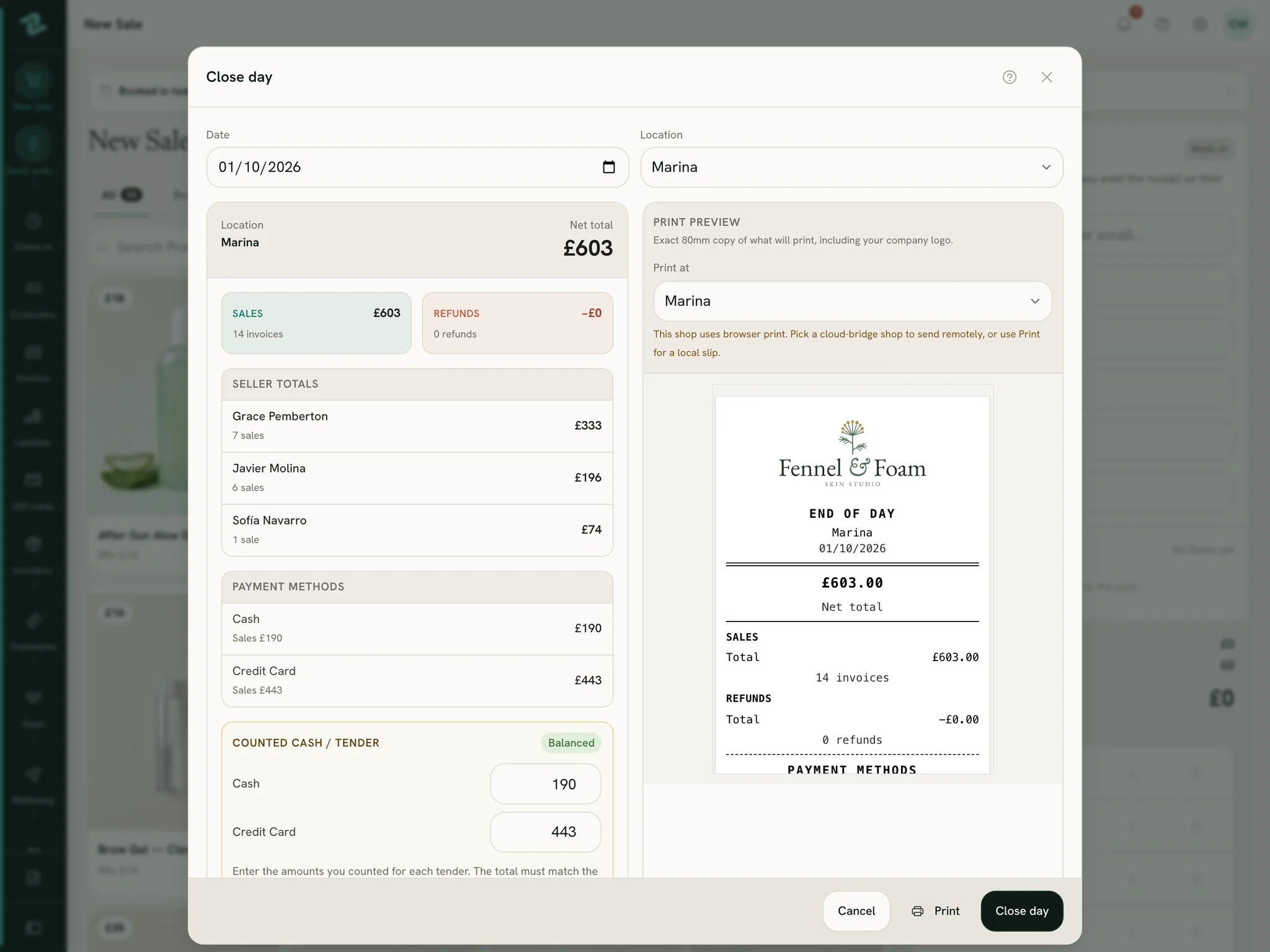
Closing the day counts each payment method against what the till expects, including what your card terminal should have taken, and prints a slip. Every sale feeds the dashboards and reports; nobody types it in twice.
The day close
Count the cash and each other method, see what’s over or short, close the day and print the slip. Anyone still clocked in is clocked out. Closed too early? Reopen the day or close it again: every count is kept.
VAT or sales tax, the way you charge it
Prices with the tax included, the tax added at the till, or no tax at all — called VAT, sales tax in the United States, or a name of your own. Receipts and reports follow your choice.
Simple or expert
Keep a plain profit and loss, or switch to expert mode for full ledgers: an account for each payment method, card fees, expenses, supplier payments and transfers between accounts.
Reports and dashboards
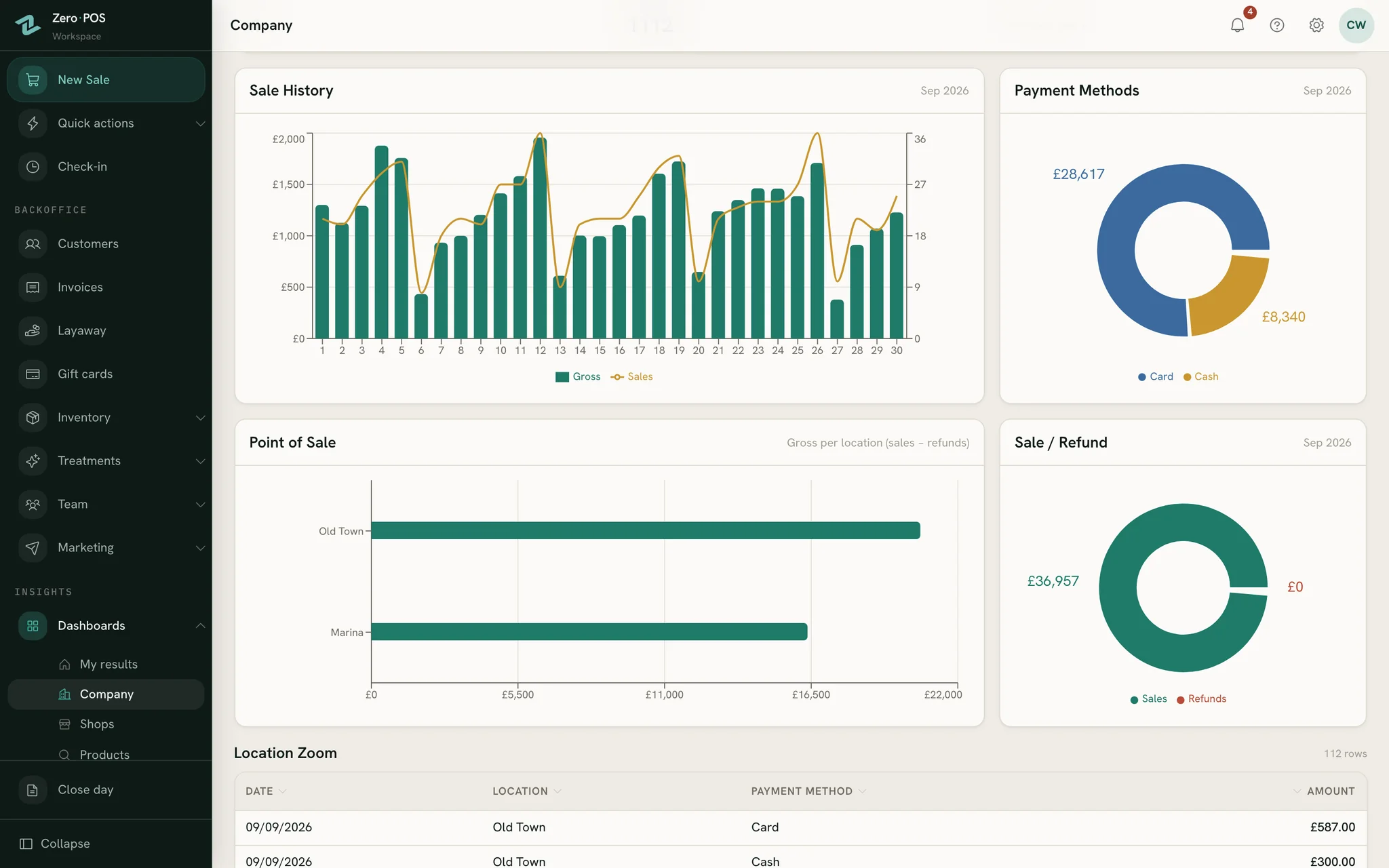
Sales, payments, expenses, stock, staff, customers and the hours your sales happen, each comparable with the last period or last year and exportable as CSV for your accountant.
Your sales history
Import past sales from a spreadsheet. It all goes in at once, or none of it does.
How it works
Offers by email
Offers your customers asked for
Build an offer from blocks — a headline, up to six of your products with their photos and prices, an offer box, buttons — and it goes out in your shop’s colours.
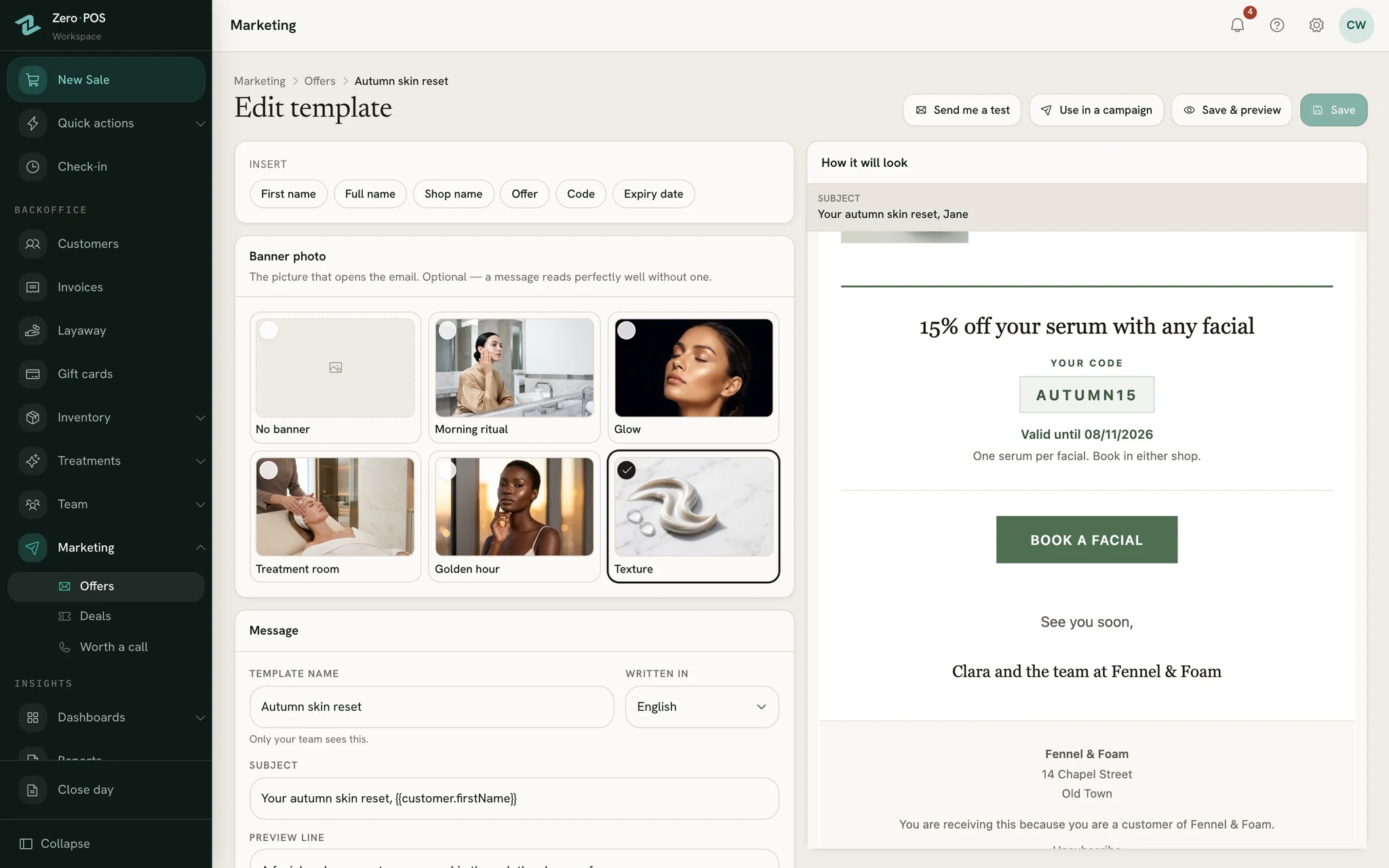
Six starters, in both languages
Ready-made templates in English and in Castilian to begin from, every word of them yours to change.
Only people who said yes
Offers go to customers who agreed to hear from you or, if you switch it on, to people who have bought from you. Anyone who unsubscribes is never emailed again, whichever file they’re on.
From your own address
Offers leave from your shop’s own email account, with your name and postal address on every one.
A page for each offer
Every offer you send gets a web page of its own, with the same products and prices, to share beyond the inbox.
Deals for one customer
Prepare a named offer with its own page and a countdown. When they come in, it becomes a sale at the price you agreed.
Languages & devices
Each person in their own language
Everyone picks the language of their own screens, English or Spanish. The shop picks the language its customers read.
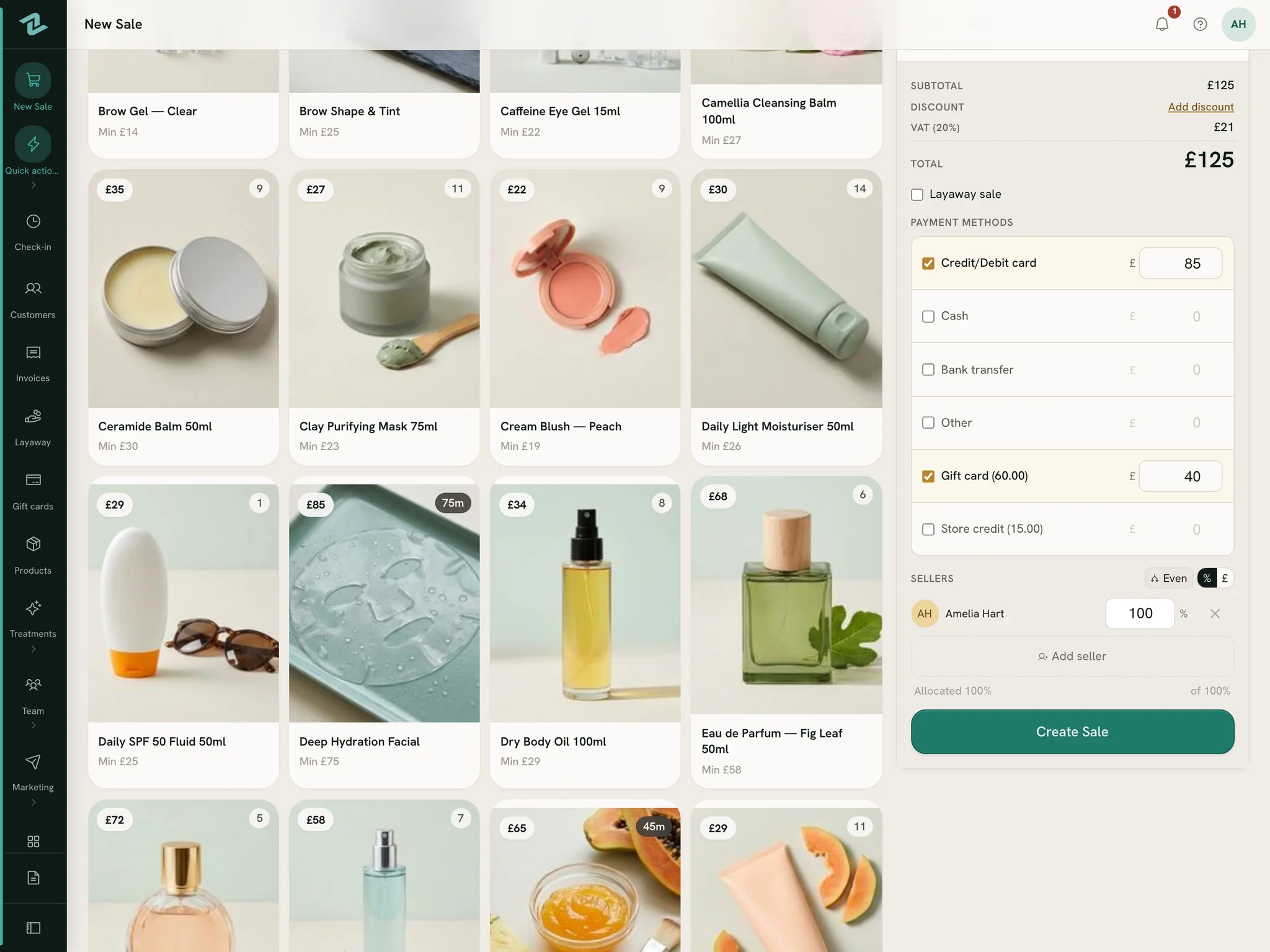
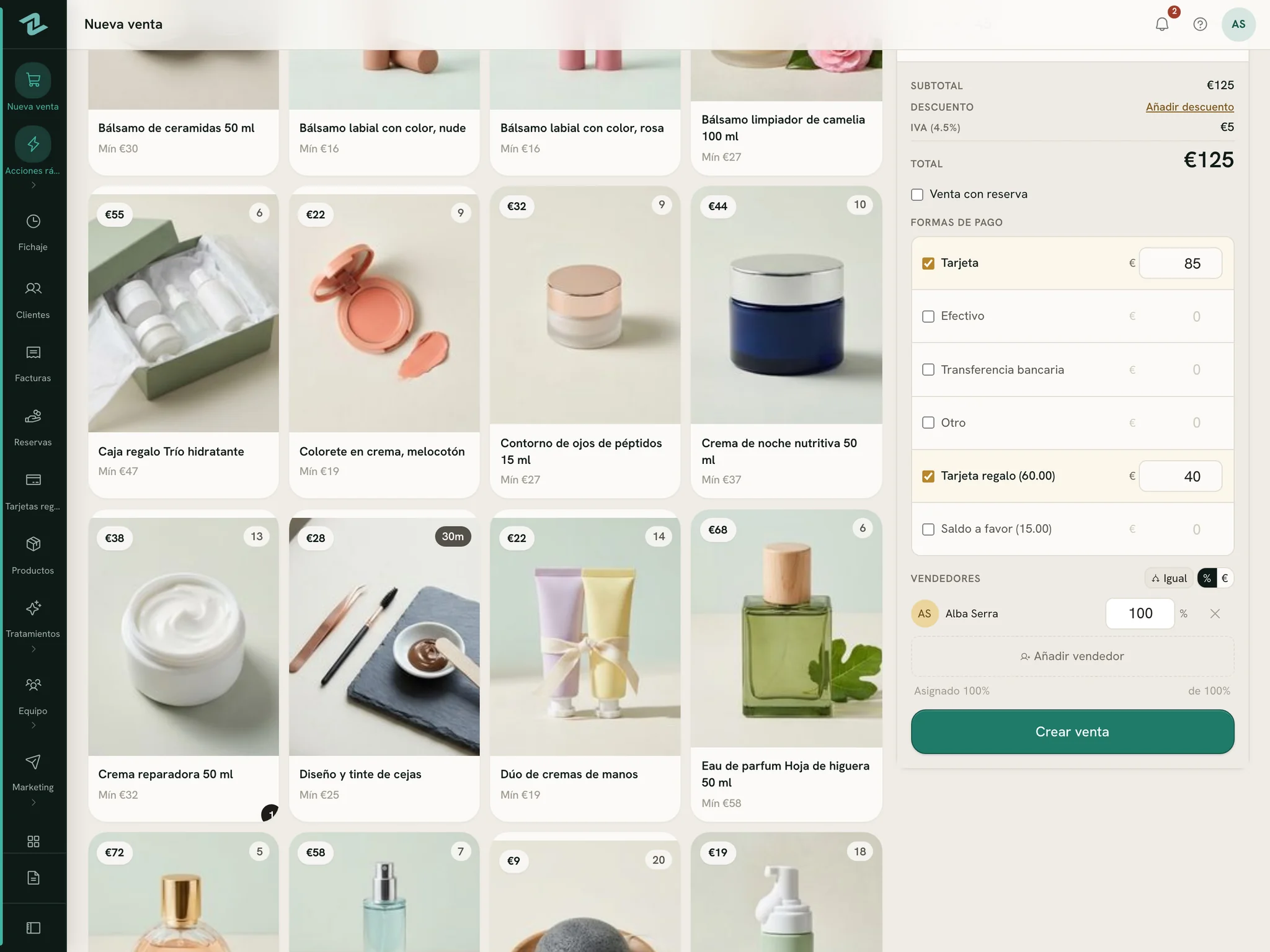
Screens and guides in both
The till, the back office, the reports you export and the help guides come in English and in Castilian, each person in their own.
Receipts in your customers’ language
Set once for the shop: printed and emailed receipts on every printer, the deal vouchers, the booking page and the deal pages.
On the devices you have
It runs in the browser on iPhone, iPad, Android, Mac and Windows PC. Add it to the home screen and it opens like an app: no app store, and updates arrive by themselves.
Notifications
Online bookings, approval requests and a newly published rota arrive as notifications; on an iPhone, once Zero POS is on the home screen.
Security & access
In with a glance, only where you should be
Sellers don’t retype passwords. The app keeps them signed in on their own device, and on a new one a passkey lets them in with Face ID or Touch ID.
Passkeys
Face ID, Touch ID or the screen lock instead of a password. A passkey only works on Zero POS, so it can’t be phished onto a lookalike page.
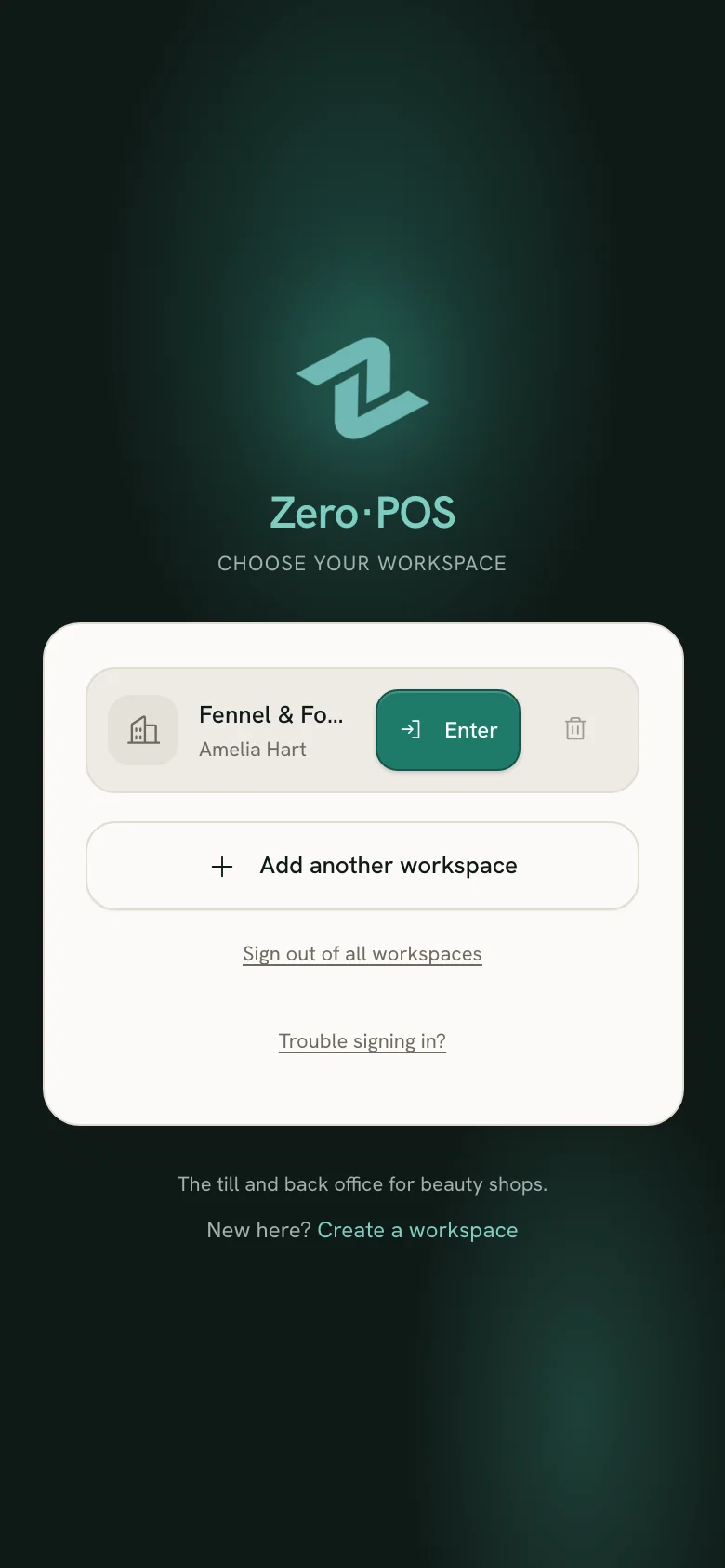
Saved workspaces
Keep more than one business on a device (a shop in each country, say) and switch between them with a tap.
Roles and places
Each role sees only what it’s allowed to, and people can be limited to certain regions or shops.
A record of changes
Changes to settings are logged with who made them. You can open a support window for 24 hours, 7 days or 30 days, and support visits are listed in your activity history.
Your data, yours to take
The owner can download everything in the workspace in one file, and any report as a CSV. Lost a phone? Sign out everywhere with one button.
How it works
Step by step
Guides for the jobs above
The help centre shows how it’s done, step by step, often with the app’s own screens, in English and in Castilian. Anyone can read it, before signing up or after.
See it with your own products
Start a free workspace, add a product and make a test sale. Nothing is charged during early access.
Free during early access · no card needed
Already use Zero POS? Sign in